<?xml version="1.0" encoding="utf-8"?>
<feed xmlns="http://www.w3.org/2005/Atom">
    <id>https://qq1332783374.github.io</id>
    <title>Tan&apos;s-Blog</title>
    <updated>2020-01-02T16:13:29.901Z</updated>
    <generator>https://github.com/jpmonette/feed</generator>
    <link rel="alternate" href="https://qq1332783374.github.io"/>
    <link rel="self" href="https://qq1332783374.github.io/atom.xml"/>
    <subtitle>温故而知新</subtitle>
    <logo>https://qq1332783374.github.io/images/avatar.png</logo>
    <icon>https://qq1332783374.github.io/favicon.ico</icon>
    <rights>All rights reserved 2020, Tan&apos;s-Blog</rights>
    <entry>
        <title type="html"><![CDATA[ES6基础-为什么要用let和const]]></title>
        <id>https://qq1332783374.github.io/post/es6-ji-chu-wei-shi-me-yao-yong-let-he-const</id>
        <link href="https://qq1332783374.github.io/post/es6-ji-chu-wei-shi-me-yao-yong-let-he-const">
        </link>
        <updated>2020-01-01T16:32:22.000Z</updated>
        <content type="html"><![CDATA[<blockquote>
<p>如题，为什么要用 <code>let</code> 和 <code>const</code> 呢？</p>
</blockquote>
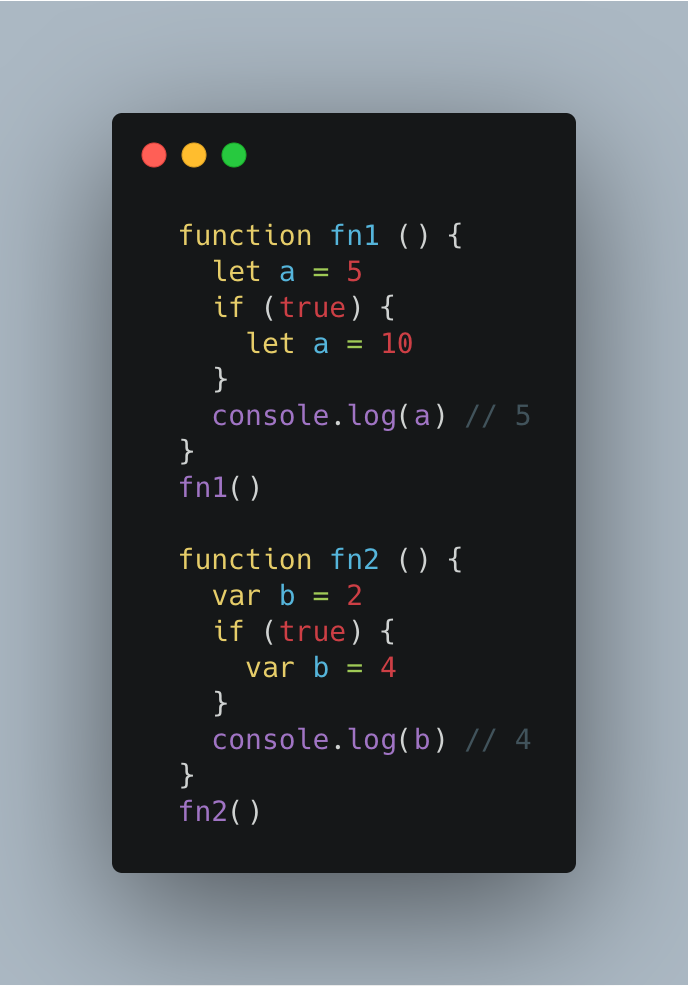
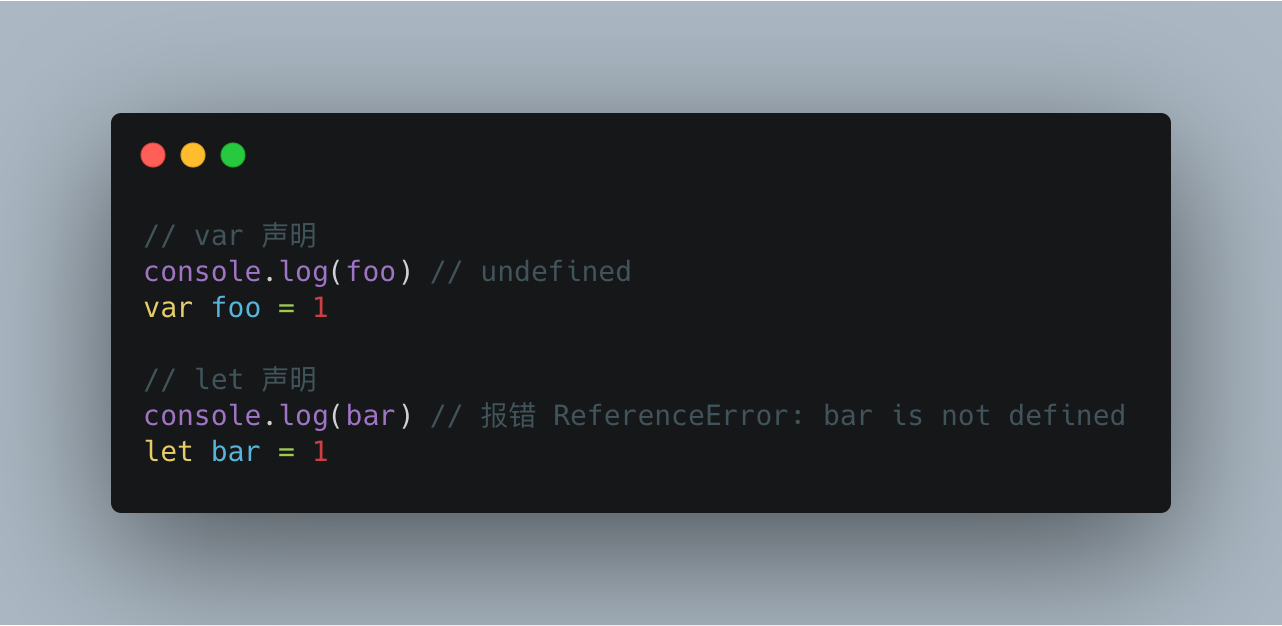
<p>在开始这个话题之前，我们先来通过以下的小例子了解一下 <code>JavaScript</code> 中 <code>var</code> 声明及变量提升机制。<br>
<img src="https://qq1332783374.github.io/post-images/1577897608597.png" alt=""></p>
<p>按照一般逻辑，变量应该在声明语句之后才可以使用，但在上面的代码中，是声明之前输出<code>foo</code>的值，且这个值为<code>undefined</code>，这就说明变量在声明之前就已经存在了。为什么用<code>var</code>会出现这种问题呢？下次我们在讨论。这里就是人们经常说的变量提升，即变量可以在声明之前使用，值为<code>undefined</code>。我们<code>console</code>用<code>let</code>声明的变量<code>bar</code>，报错了，这就表示声明之前，变量<code>bar</code>是不存在的，这里就没有变量提升的现象出现。为了纠正这种现象，让大家更好的理解代码，<code>let</code>命令改变了语法行为，它所使用的变量一定要在声明之后使用，否则就会报错。</p>
<h1 id="1-let-命令">1. let 命令</h1>
<p>特性：</p>
<ul>
<li>块级声明</li>
<li>不存在变量提升</li>
<li>不允许重复声明</li>
</ul>
<h2 id="11-块级声明和不存在变量提升">1.1 块级声明和不存在变量提升</h2>
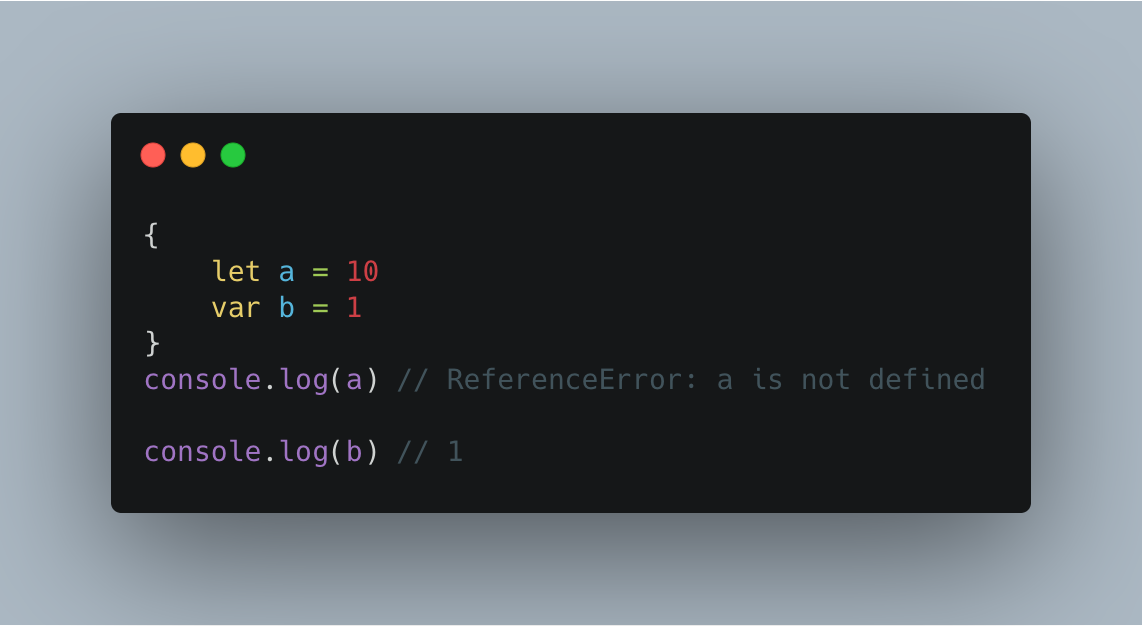
<p>块级声明是指某个变量只在相应的作用域内生效，外部是不可以访问的。<code>let</code> 声明的用法与 <code>var</code>相同，不同的是不存在变量提升，在指定作用域生效。常见的块级作用域:</p>
<ul>
<li>函数内部<br>
<img src="https://qq1332783374.github.io/post-images/1577976240446.png" alt=""></li>
<li>块中 <code>{}</code><br>
<img src="https://qq1332783374.github.io/post-images/1577975547635.png" alt=""></li>
</ul>
<h2 id="12-不允许重复声明">1.2 不允许重复声明</h2>
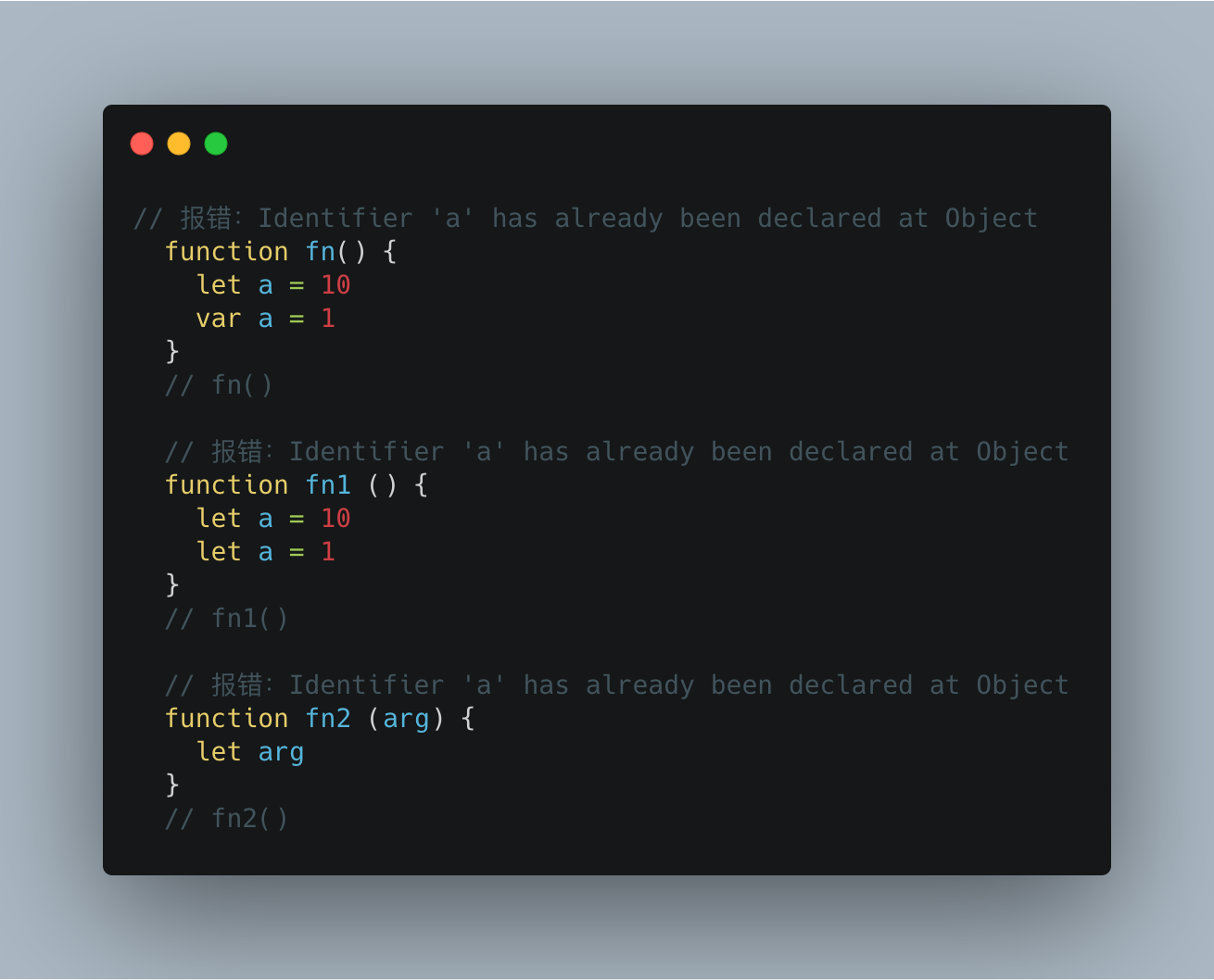
<p><code>let</code> 不允许在相同作用域内重复声明同一个变量。<br>
<img src="https://qq1332783374.github.io/post-images/1577976984953.png" alt=""></p>
<h1 id="2-const-命令">2. const 命令</h1>
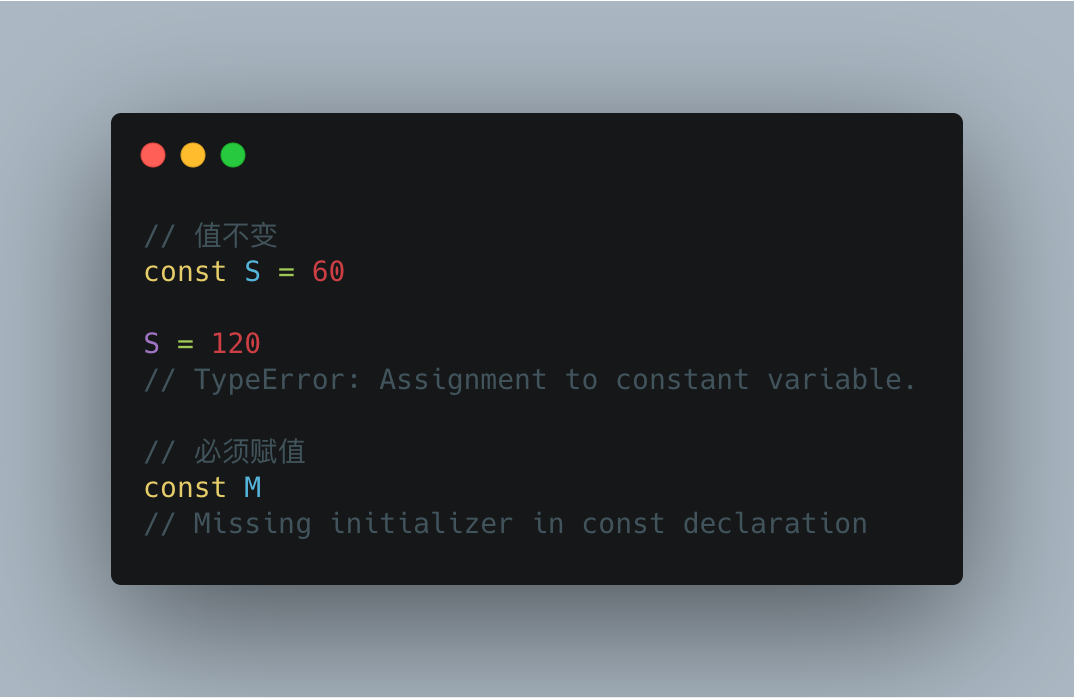
<p><code>const</code> 通常声明的是一个只读的常量，一旦声明了，其中的值是不能改变，这就意味着声明的这个常量必须是要赋值的。<br>
<img src="https://qq1332783374.github.io/post-images/1577980879721.png" alt=""></p>
<p><code>const</code> 除了值不能变和只读，其他的特性跟 <code>let</code> 是一样的，同样是块级声明、不存在变量提升和不允许重复声明。在这里需要注意一点的是，声明常量的时候要必须确保这个值是固定不变的。</p>
<h1 id="总结">总结</h1>
<p>回到问题：为什么要用 <code>let</code> 和 <code>const</code> ？<br>
新语法的出现，不仅使得我们更容易的理解<code>JS</code>，而且减少很多奇奇怪怪的问题出现。块级声明，可以很有效的避免了变量污染这个问题。</p>
]]></content>
    </entry>
    <entry>
        <title type="html"><![CDATA[Mac 解决`.bash_profile`配置项不生效问题]]></title>
        <id>https://qq1332783374.github.io/post/mac-jie-jue-bash_profilepei-zhi-xiang-bu-sheng-xiao-wen-ti</id>
        <link href="https://qq1332783374.github.io/post/mac-jie-jue-bash_profilepei-zhi-xiang-bu-sheng-xiao-wen-ti">
        </link>
        <updated>2019-11-27T13:56:58.000Z</updated>
        <summary type="html"><![CDATA[<h2 id="前言">前言</h2>
<p>重启电脑，打开<code>iTerm2</code>敲命令的时候，突然发现配置项不生效了，要<code>source ~/.bash_profile</code> 一下才行，好像每次重启了都要重载一下命令。这就令人很头疼啦！网上查了一下，原来是我的<code>iTerm2</code>是加载<code>~/.zshrc</code>文件，然而这个文件里面并没有定义到环境变量导致的。</p>
]]></summary>
        <content type="html"><![CDATA[<h2 id="前言">前言</h2>
<p>重启电脑，打开<code>iTerm2</code>敲命令的时候，突然发现配置项不生效了，要<code>source ~/.bash_profile</code> 一下才行，好像每次重启了都要重载一下命令。这就令人很头疼啦！网上查了一下，原来是我的<code>iTerm2</code>是加载<code>~/.zshrc</code>文件，然而这个文件里面并没有定义到环境变量导致的。</p>
<!-- more -->
<h2 id="解决">解决</h2>
<p>其实解决办法很简单，只需在<code>~/.zshrc</code>文件下面添加重载命令即可</p>
<pre><code># 打开 .zshrc 文件
vim ~./zshrc

# 在最后添加命令
source ~/.bash_profile

# 保存退出
:wq

# 重载 `.zshrc` 文件
source ~./zshrc
</code></pre>
<h2 id="总结">总结</h2>
<p>希望能帮助到大家。</p>
]]></content>
    </entry>
    <entry>
        <title type="html"><![CDATA[Mac终端iTerm2配置]]></title>
        <id>https://qq1332783374.github.io/post/mac-zhong-duan-iterm2-pei-zhi</id>
        <link href="https://qq1332783374.github.io/post/mac-zhong-duan-iterm2-pei-zhi">
        </link>
        <updated>2019-11-17T04:41:47.000Z</updated>
        <content type="html"><![CDATA[<h2 id="1-前言">1. 前言</h2>
<blockquote>
<p>iTerm2是MAC下最好用的终端工具，并且还是免费的.</p>
</blockquote>
<h2 id="2-安装和配置">2. 安装和配置</h2>
<ul>
<li><a href="https://www.iterm2.com/index.html">官网下载</a></li>
<li><a href="https://github.com/gnachman/iTerm2">Github</a><br>
下载安装好，然后打开ITerm2</li>
</ul>
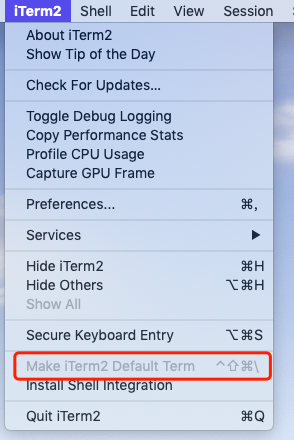
<h4 id="21-设为默认">2.1 设为默认</h4>
<figure data-type="image" tabindex="1"><img src="https://qq1332783374.github.io/post-images/1573967614631.jpg" alt=""></figure>
<h4 id="22-配置iterm2-主题">2.2 配置iTerm2 主题</h4>
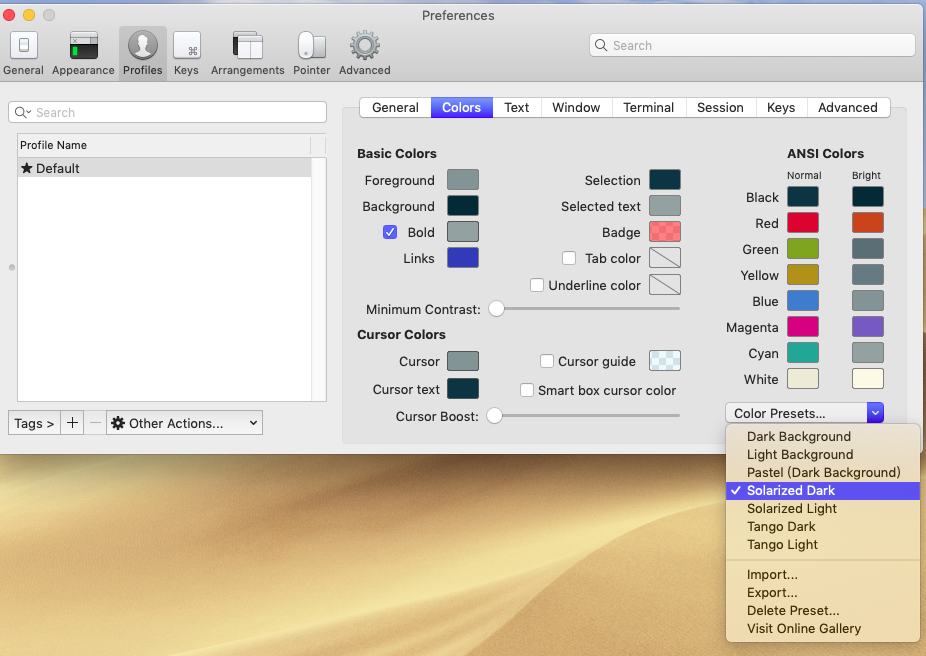
<p>iTerm2 最常用的主题是 Solarized Dark theme</p>
<ul>
<li><a href="https://ethanschoonover.com/solarized/">下载地址</a></li>
</ul>
<p>下载完成解压，然后打开设置界面</p>
<ul>
<li>快捷键： <code>Command + ,</code></li>
<li>界面直接打开 <code>Profiles -&gt; Colors -&gt; Color Presets</code></li>
</ul>
<figure data-type="image" tabindex="2"><img src="https://qq1332783374.github.io/post-images/1573967715657.png" alt=""></figure>
<h4 id="23-安装-oh-my-zsh">2.3 安装 <code>oh-my-zsh</code></h4>
<p>Oh My Zsh 是对主题的进一步扩展</p>
<ul>
<li><a href="https://github.com/robbyrussell/oh-my-zsh">Github</a></li>
</ul>
<p>安装命令:</p>
<pre><code>curl -L https://raw.github.com/robbyrussell/oh-my-zsh/master/tools/install.sh | sh
</code></pre>
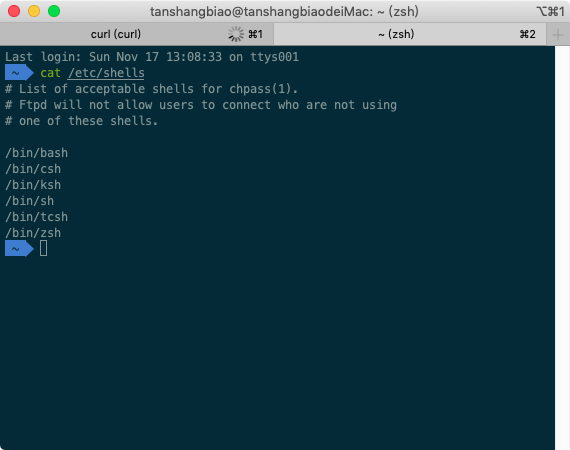
<p>安装好之后我们可以查看一下自己的系统有多少个<code>shell</code></p>
<pre><code>cat /etc/shells
</code></pre>
<figure data-type="image" tabindex="3"><img src="https://qq1332783374.github.io/post-images/1573967927072.png" alt=""></figure>
<p>切换shell:</p>
<pre><code>chsh -s /bin/zsh
</code></pre>
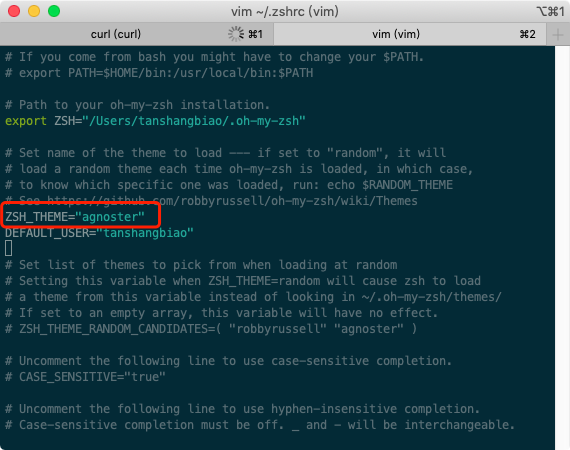
<p>然后就是修改<code>zsh</code>主题，用<code>vi</code>打开 <code>.zhsrc</code>文件:</p>
<pre><code>vim ~/.zshrc
</code></pre>
<figure data-type="image" tabindex="4"><img src="https://qq1332783374.github.io/post-images/1573968190094.png" alt=""></figure>
<h4 id="24-安装powerline">2.4 安装powerline</h4>
<pre><code>//没有安装pip先安装pip
sudo easy_install pip

//之后安装powerline（这里可能会报错，可以参考问题解决）
pip install powerline-status
</code></pre>
<h4 id="25-安装-fonts-字体库">2.5 安装 <code>fonts</code> 字体库</h4>
<p>安装字体库，主要为了解决某些符号显示问题</p>
<ul>
<li><a href="https://github.com/powerline/fonts">Github</a></li>
</ul>
<pre><code>//克隆字体库到本地
git clone https://github.com/powerline/fonts.git

// 切换到字体目录下进行安装
cd fonts

// 安装
./install.sh
</code></pre>
<p>安装成功后会输出一下信息<br>
<img src="https://qq1332783374.github.io/post-images/1573968541013.png" alt=""></p>
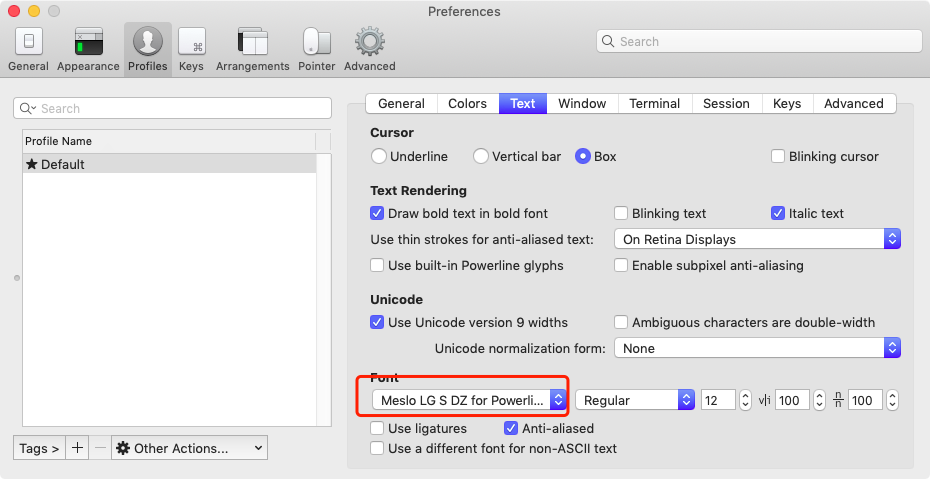
<p>安装完成，进行字体配置：<br>
<img src="https://qq1332783374.github.io/post-images/1573968652100.png" alt=""></p>
<h4 id="26-自动提示命令">2.6 自动提示命令</h4>
<p>当我们输入命令时，终端会自动提示你接下来可能要输入的命令，这时按 → 便可输出这些命令，非常方便。</p>
<ul>
<li><a href="https://github.com/zsh-users/zsh-autosuggestions">Github</a></li>
</ul>
<p>设置步骤：</p>
<ul>
<li>克隆仓库到本地 <code>~/.oh-my-zsh/custom/plugins</code> 路径下</li>
</ul>
<pre><code>git clone git://github.com/zsh-users/zsh-autosuggestions $ZSH_CUSTOM/plugins/zsh-autosuggestions
</code></pre>
<ul>
<li>用 <code>vim ~/.zshrc</code> 打开文件，下滑找到插件设置命令，默认是<code>plugins=(git)</code>，我们为其添加多一个插件</li>
</ul>
<figure data-type="image" tabindex="5"><img src="https://qq1332783374.github.io/post-images/1573969109272.png" alt=""></figure>
<ul>
<li>重载配置文件 <code>source ~/.zshrc</code></li>
</ul>
<h4 id="27-添加增加指令高亮效果插件-zsh-syntax-highlighting">2.7 添加增加指令高亮效果插件-<code>zsh-syntax-highlighting</code></h4>
<ul>
<li>
<p><a href="https://github.com/zsh-users/zsh-syntax-highlighting">Github</a></p>
</li>
<li>
<p>下载安装</p>
</li>
</ul>
<pre><code>//克隆项目到本地
git clone git://github.com/zsh-users/zsh-syntax-highlighting.git
</code></pre>
<ul>
<li><code>vim ~/.zshrc</code> 修改配置文件，在最后插入以下代码，修改 <code>plugins</code>选项，保存退出 <code>:wq</code></li>
</ul>
<pre><code>source /Users/tanshangbiao/item-them/zsh-syntax-highlighting/zsh-syntax-highlighting.zsh
</code></pre>
<h4 id="28-隐藏用户名和主机名">2.8 隐藏用户名和主机名</h4>
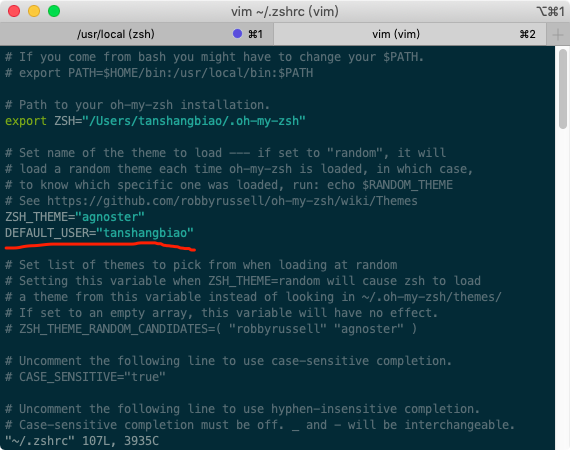
<p>有时候我们的用户名和主机名太长，比如我的<code>tanshangbiao@tanshangbiaoMacBook-Pro</code>，终端显示的时候会很不好看，我们可以手动去除。</p>
<p>编辑<code>vim ~/.zshrc</code>文件，增加<code>DEFAULT_USER=&quot;your name&quot;</code>配置</p>
<figure data-type="image" tabindex="6"><img src="https://qq1332783374.github.io/post-images/1573969734051.png" alt=""></figure>
<h2 id="总结">总结</h2>
<p>以上就是 iTerm2 的一些基本配置了，如有那里不对的请指出。谢谢</p>
]]></content>
    </entry>
    <entry>
        <title type="html"><![CDATA[NodeJS爬虫--3--使用 async 控制并发]]></title>
        <id>https://qq1332783374.github.io/post/nodejs-pa-chong-3-shi-yong-async-kong-zhi-bing-fa</id>
        <link href="https://qq1332783374.github.io/post/nodejs-pa-chong-3-shi-yong-async-kong-zhi-bing-fa">
        </link>
        <updated>2019-05-21T13:19:05.000Z</updated>
        <content type="html"><![CDATA[<blockquote>
<p>文章出自<strong>GitHub</strong>：<a href="https://github.com/alsotang">alsotang</a> 的 <a href="node-lessons">https://github.com/alsotang/node-lessons</a> 感谢大神</p>
</blockquote>
<p>代码</p>
<pre><code class="language-javascript">const async = require('async')
const superagent = require('superagent')
const cheerio = require('cheerio')
var eventproxy = require('eventproxy')
const url = require('url')

// 并发计数器
var concurrencyCount = 0
var fetchUrl = (url, callback) =&gt; {
    // delay 的值为 2000 以内的随机整数
    const delay = parseInt((Math.random() * 10000000) % 2000, 10)
    concurrencyCount++
    console.log('现在的并发数是', concurrencyCount, '，正在抓取的是', url, '，耗时' + delay + '毫秒');
    setTimeout(() =&gt; {
        concurrencyCount--
        callback(null, url)
    }, delay)
}

var urls = []
var condeUrl = 'https://cnodejs.org/'
// 爬取url
superagent.get(condeUrl)
    .end((err, res) =&gt; {
        if (err) return console.error(err);

        var $ = cheerio.load(res.text)
        // 爬取首页的url
        $('#topic_list .topic_title').each((idx, el) =&gt; {
            var $el = $(el)
            // $element.attr('href') 本来的样子是 /topic/542acd7d5d28233425538b04
            // 我们用 url.resolve 来自动推断出完整 url，变成
            // https://cnodejs.org/topic/542acd7d5d28233425538b04 的形式
            var href = url.resolve(condeUrl, $el.attr('href'))
            urls.push(href)
        })

        async.mapLimit(urls, 5, (url, callback) =&gt; {
            fetchUrl(url, callback)
        }, (err, result) =&gt; {
            console.log('final:')
            console.log(result)

            var ep = new eventproxy()

            ep.after('topic_html', urls.length, (topics) =&gt; {
                topics = topics.map((topicPair) =&gt; {
                    var topicUrl = topicPair[0]
                    var topicHtml = topicPair[1]
                    var $ = cheerio.load(topicHtml)
                    return ({
                        title: $('.topic_full_title').text().trim(),
                        href: topicUrl,
                        comment1: $('.reply_content').eq(0).text().trim(),
                        author: $('.user_card .user_name a').text().trim(),
                        score: $('.user_card .floor .big').text().trim(),
                        content: $('.markdown-text p').text().trim(),
                    })
                })

                console.log('topics:');
                console.log(topics);
            })

            urls.forEach((topicUrl) =&gt; {
                superagent.get(topicUrl)
                    .end((err, res) =&gt; {
                        console.log('fetch ' + topicUrl + ' successful');
                        ep.emit('topic_html', [topicUrl, res.text]);
                    })
            })

        })
    })
</code></pre>
]]></content>
    </entry>
    <entry>
        <title type="html"><![CDATA[NodeJS爬虫--2--使用 eventproxy 控制并发(转载)]]></title>
        <id>https://qq1332783374.github.io/post/nodejs-pa-chong-2-shi-yong-eventproxy-kong-zhi-bing-fa-zhuan-zai</id>
        <link href="https://qq1332783374.github.io/post/nodejs-pa-chong-2-shi-yong-eventproxy-kong-zhi-bing-fa-zhuan-zai">
        </link>
        <updated>2019-05-21T11:49:06.000Z</updated>
        <content type="html"><![CDATA[<blockquote>
<p>文章出自<strong>GitHub</strong>：<a href="https://github.com/alsotang">alsotang</a> 的 <a href="node-lessons">https://github.com/alsotang/node-lessons</a> 感谢大神</p>
</blockquote>
<blockquote>
<p>注意，cnodejs.org 网站有并发连接数的限制，所以当请求发送太快的时候会导致返回值为空或报错。建议一次抓取3个主题即可。文中的40只是为了方便讲解</p>
</blockquote>
<p>这一章我们来到了 Node.js 最牛逼的地方——异步并发的内容了。</p>
<p>上一课我们介绍了如何使用 superagent 和 cheerio 来取主页内容，那只需要发起一次 http get 请求就能办到。但这次，我们需要取出每个主题的第一条评论，这就要求我们对每个主题的链接发起请求，并用 cheerio 去取出其中的第一条评论。</p>
<p>CNode 目前每一页有 40 个主题，于是我们就需要发起 1 + 40 个请求，来达到我们这一课的目标。</p>
<p>后者的 40 个请求，我们并发地发起：），而且不会遇到多线程啊锁什么的，Node.js 的并发模型跟多线程不同，抛却那些观念。更具体一点的话，比如异步到底为何异步，Node.js 为何单线程却能并发这类走近科学的问题，我就不打算讲了。对于这方面有兴趣的同学，强烈推荐 @朴灵 的 《九浅一深Node.js》： http://book.douban.com/subject/25768396/ 。</p>
<p>有些逼格比较高的朋友可能听说过 promise 和 generator 这类概念。不过我呢，只会讲 callback，主要原因是我个人只喜欢 callback。</p>
<p>这次课程我们需要用到三个库：superagent cheerio eventproxy(https://github.com/JacksonTian/eventproxy )</p>
<p>手脚架的工作各位自己来，我们一步一步来一起写出这个程序。</p>
<p>首先 app.js 应该长这样</p>
<pre><code class="language-javascript">var eventproxy = require('eventproxy');
var superagent = require('superagent');
var cheerio = require('cheerio');
// url 模块是 Node.js 标准库里面的
// http://nodejs.org/api/url.html
var url = require('url');

var cnodeUrl = 'https://cnodejs.org/';

superagent.get(cnodeUrl)
  .end(function (err, res) {
    if (err) {
      return console.error(err);
    }
    var topicUrls = [];
    var $ = cheerio.load(res.text);
    // 获取首页所有的链接
    $('#topic_list .topic_title').each(function (idx, element) {
      var $element = $(element);
      // $element.attr('href') 本来的样子是 /topic/542acd7d5d28233425538b04
      // 我们用 url.resolve 来自动推断出完整 url，变成
      // https://cnodejs.org/topic/542acd7d5d28233425538b04 的形式
      // 具体请看 http://nodejs.org/api/url.html#url_url_resolve_from_to 的示例
      var href = url.resolve(cnodeUrl, $element.attr('href'));
      topicUrls.push(href);
    });

    console.log(topicUrls);
  });
</code></pre>
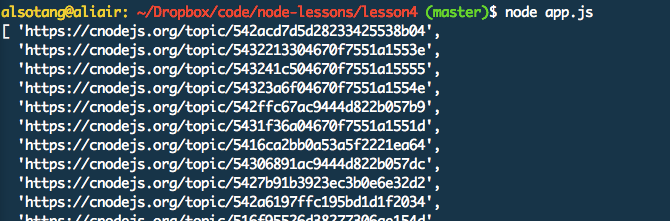
<p>运行 <code>node app.js</code></p>
<p>输出如下图：</p>
<figure data-type="image" tabindex="1"><img src="https://qq1332783374.github.io/post-images/1558439995819.png" alt=""></figure>
<p>OK，这时候我们已经得到所有 url 的地址了，接下来，我们把这些地址都抓取一遍，就完成了，Node.js 就是这么简单。</p>
<p>抓取之前，还是得介绍一下 eventproxy 这个库。</p>
<p>用 js 写过异步的同学应该都知道，如果你要并发异步获取两三个地址的数据，并且要在获取到数据之后，对这些数据一起进行利用的话，常规的写法是自己维护一个计数器。</p>
<p>先定义一个 <code>var count = 0</code>，然后每次抓取成功以后，就<code>count++</code>。如果你是要抓取三个源的数据，由于你根本不知道这些异步操作到底谁先完成，那么每次当抓取成功的时候，就判断一下 <code>count === 3</code>。当值为真时，使用另一个函数继续完成操作。</p>
<p>而 eventproxy 就起到了这个计数器的作用，它来帮你管理到底这些异步操作是否完成，完成之后，它会自动调用你提供的处理函数，并将抓取到的数据当参数传过来。</p>
<p>假设我们不使用 eventproxy 也不使用计数器时，抓取三个源的写法是这样的：</p>
<pre><code class="language-javascript">// 参考 jquery 的 $.get 的方法
$.get(&quot;http://data1_source&quot;, function (data1) {
  // something
  $.get(&quot;http://data2_source&quot;, function (data2) {
    // something
    $.get(&quot;http://data3_source&quot;, function (data3) {
      // something
      var html = fuck(data1, data2, data3);
      render(html);
    });
  });
});
</code></pre>
<p>上述的代码大家都写过吧。先获取 data1，获取完成之后获取 data2，然后再获取 data3，然后 fuck 它们，进行输出。</p>
<p>但大家应该也想到了，其实这三个源的数据，是可以并行去获取的，data2 的获取并不依赖 data1 的完成，data3 同理也不依赖 data2。</p>
<p>于是我们用计数器来写，会写成这样：</p>
<pre><code class="language-javascript">(function () {
  var count = 0;
  var result = {};

  $.get('http://data1_source', function (data) {
    result.data1 = data;
    count++;
    handle();
    });
  $.get('http://data2_source', function (data) {
    result.data2 = data;
    count++;
    handle();
    });
  $.get('http://data3_source', function (data) {
    result.data3 = data;
    count++;
    handle();
    });

  function handle() {
    if (count === 3) {
      var html = fuck(result.data1, result.data2, result.data3);
      render(html);
    }
  }
})();
</code></pre>
<p>如果我们用 eventproxy，写出来是这样的：</p>
<pre><code class="language-javascript">var ep = new eventproxy();
ep.all('data1_event', 'data2_event', 'data3_event', function (data1, data2, data3) {
  var html = fuck(data1, data2, data3);
  render(html);
});

$.get('http://data1_source', function (data) {
  ep.emit('data1_event', data);
  });

$.get('http://data2_source', function (data) {
  ep.emit('data2_event', data);
  });

$.get('http://data3_source', function (data) {
  ep.emit('data3_event', data);
  });
</code></pre>
<p>好看多了是吧，也就是个高等计数器嘛。</p>
<p><code>ep.all('data1_event', 'data2_event', 'data3_event', function (data1, data2, data3) {});</code></p>
<p>这一句，监听了三个事件，分别是 <code>data1_event, data2_event, data3_event</code>，每次当一个源的数据抓取完成时，就通过 <code>ep.emit()</code>来告诉 ep 自己，某某事件已经完成了。</p>
<p>当三个事件未同时完成时，<code>ep.emit()</code>调用之后不会做任何事；当三个事件都完成的时候，就会调用末尾的那个回调函数，来对它们进行统一处理。</p>
<p>eventproxy 提供了不少其他场景所需的 API，但最最常用的用法就是以上的这种，即：</p>
<ol>
<li>先 <code>var ep = new eventproxy();</code> 得到一个 <code>eventproxy</code>实例。</li>
<li>告诉它你要监听哪些事件，并给它一个回调函数。<code>ep.all('event1', 'event2', function (result1, result2) {})。</code></li>
<li>在适当的时候 <code>ep.emit('event_name', eventData)</code><br>
eventproxy 这套处理异步并发的思路，我一直觉得就像是汇编里面的 goto 语句一样，程序逻辑在代码中随处跳跃。本来代码已经执行到 100 行了，突然 80 行的那个回调函数又开始工作了。如果你异步逻辑复杂点的话，80 行的这个函数完成之后，又激活了 60 行的另外一个函数。并发和嵌套的问题虽然解决了，但老祖宗们消灭了几十年的 goto 语句又回来了。</li>
</ol>
<p>至于这套思想糟糕不糟糕，我个人倒是觉得还是不糟糕，用熟了看起来蛮清晰的。不过 js 这门渣渣语言本来就乱嘛，什么变量提升（http://www.cnblogs.com/damonlan/archive/2012/07/01/2553425.html ）啊，没有 main 函数啊，变量作用域啊，数据类型常常简单得只有数字、字符串、哈希、数组啊，这一系列的问题，都不是事儿。</p>
<p>编程语言美丑啥的，咱心中有佛就好。</p>
<p>回到正题，之前我们已经得到了一个长度为 40 的 topicUrls 数组，里面包含了每条主题的链接。那么意味着，我们接下来要发出 40 个并发请求。我们需要用到 eventproxy 的 #after API。</p>
<p>大家自行学习一下这个 API 吧：</p>
<p>https://github.com/JacksonTian/eventproxy#%E9%87%8D%E5%A4%8D%E5%BC%82%E6%AD%A5%E5%8D%8F%E4%BD%9C</p>
<pre><code class="language-javascript">// 得到 topicUrls 之后

// 得到一个 eventproxy 的实例
var ep = new eventproxy();

// 命令 ep 重复监听 topicUrls.length 次（在这里也就是 40 次） `topic_html` 事件再行动
ep.after('topic_html', topicUrls.length, function (topics) {
  // topics 是个数组，包含了 40 次 ep.emit('topic_html', pair) 中的那 40 个 pair

  // 开始行动
  topics = topics.map(function (topicPair) {
    // 接下来都是 jquery 的用法了
    var topicUrl = topicPair[0];
    var topicHtml = topicPair[1];
    var $ = cheerio.load(topicHtml);
    return ({
      title: $('.topic_full_title').text().trim(),
      href: topicUrl,
      comment1: $('.reply_content').eq(0).text().trim(),
    });
  });

  console.log('final:');
  console.log(topics);
});

topicUrls.forEach(function (topicUrl) {
  superagent.get(topicUrl)
    .end(function (err, res) {
      console.log('fetch ' + topicUrl + ' successful');
      ep.emit('topic_html', [topicUrl, res.text]);
    });
});
</code></pre>
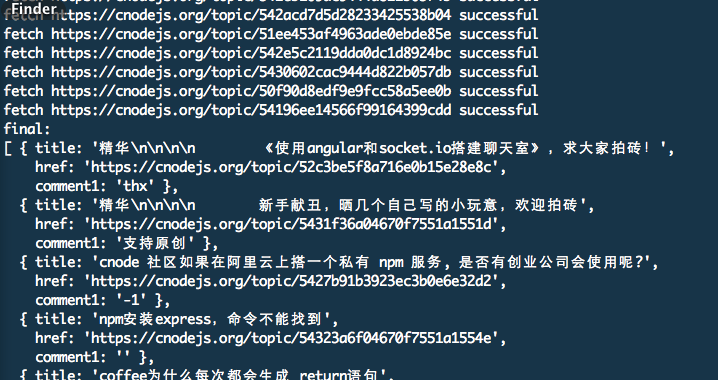
<p>输出长这样：</p>
<figure data-type="image" tabindex="2"><img src="https://qq1332783374.github.io/post-images/1558440394018.png" alt=""></figure>
<p>完整代码：</p>
<pre><code class="language-javascript">var router = require('express').Router()
var eventproxy = require('eventproxy');
var superagent = require('superagent');
var cheerio = require('cheerio');
var url = require('url');

var cnodeUrl = 'https://cnodejs.org/';

superagent.get(cnodeUrl)
    .end(function (err, res) {
        if (err) {
            return console.error(err);
        }
        var topicUrls = [];
        var $ = cheerio.load(res.text);
        $('#topic_list .topic_title').each(function (idx, element) {
            var $element = $(element);
            var href = url.resolve(cnodeUrl, $element.attr('href'));
            topicUrls.push(href);
        });

        var ep = new eventproxy();

        ep.after('topic_html', topicUrls.length, function (topics) {
            topics = topics.map(function (topicPair) {
                var topicUrl = topicPair[0];
                var topicHtml = topicPair[1];
                var $ = cheerio.load(topicHtml);
                return ({
                    title: $('.topic_full_title').text().trim(),
                    href: topicUrl,
                    comment1: $('.reply_content').eq(0).text().trim(),
                    author1: $('.user_card .user_name a').text().trim(),
                    score1: $('.user_card .floor .big').text().trim(),
                    content: $('.markdown-text p').text().trim(),
                });
            });

            console.log('final:');
            console.log(topics);
        });

        topicUrls.forEach(function (topicUrl) {
            superagent.get(topicUrl)
                .end(function (err, res) {
                    console.log('fetch ' + topicUrl + ' successful');
                    ep.emit('topic_html', [topicUrl, res.text]);
                });
        });
    });
</code></pre>
]]></content>
    </entry>
    <entry>
        <title type="html"><![CDATA[NodeJS爬虫--1--实现简单的网页的爬虫]]></title>
        <id>https://qq1332783374.github.io/post/nodejs-pa-chong-1-shi-xian-jian-dan-de-wang-ye-de-pa-chong</id>
        <link href="https://qq1332783374.github.io/post/nodejs-pa-chong-1-shi-xian-jian-dan-de-wang-ye-de-pa-chong">
        </link>
        <updated>2019-05-21T06:41:55.000Z</updated>
        <content type="html"><![CDATA[<blockquote>
<p>感谢 <strong>GitHub</strong> 的<a href="https://github.com/alsotang?tab=repositories">alsotang</a> 提供的开源学习项目 <a href="https://github.com/alsotang/node-lessons">node-lessons</a> ，昨天看了一天收获还是不少，不过有些点还不是很理解。今天总结了一下，基本吸收的知识点。</p>
</blockquote>
<h2 id="知识点">知识点</h2>
<ol>
<li>使用 Express 实现简单的node服务</li>
<li>使用 superagent 抓取网页</li>
<li>使用 cheerio 分析网页</li>
</ol>
<h2 id="1-使用-express-实现简单的node服务">1. 使用 Express 实现简单的node服务</h2>
<h4 id="11-express-框架介绍">1.1 Express 框架介绍</h4>
<blockquote>
<p>Express 基于 Node.js 平台，快速、开放、极简的 Web 开发框架</p>
</blockquote>
<ul>
<li><a href="http://expressjs.com/">官网</a></li>
</ul>
<h4 id="12-项目初始化">1.2 项目初始化</h4>
<blockquote>
<p>前提是要安装 <strong>Node.js</strong></p>
</blockquote>
<p>接下来新建一个目录</p>
<pre><code class="language-javascript">mkdir myapp
</code></pre>
<p>并切换到新建好的目录下：</p>
<pre><code class="language-javascript">cd myapp
</code></pre>
<p>通过 <code>npm init -y</code> 命令初始化项目，这时候会生成一个 <code>package.json</code>的文件，这个文件是个好东西，想了解更多请前往 <a href="https://docs.npmjs.com/files/package.json"> Specifics of npm’s package.json handling.</a></p>
<p>接下来在 myapp 目录下安装 Express 并将其保存到依赖列表中。如下：</p>
<pre><code class="language-javascript">npm install express --save
</code></pre>
<p>新建一个<strong>app.js</strong> 文件，输入一下代码：</p>
<pre><code class="language-javascript">// 加载 express 模块
const express = require('express')

// 实例化 express
const app = express()

// 
app.get('/', (req, res) =&gt; {
	res.send('Hello Express')
})

// 端口监听
app.listen(3000, () =&gt; {
	console.log('server is running at http://localhost:3000')
})
</code></pre>
<p>执行一下命令：</p>
<pre><code class="language-javascript">node app.js
</code></pre>
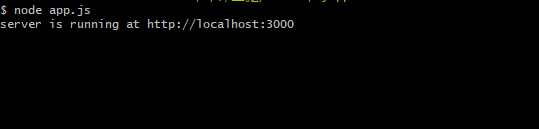
<p>这时候终端会输出相关的打印信息，<br>
<img src="https://qq1332783374.github.io/post-images/1558423357462.png" alt=""></p>
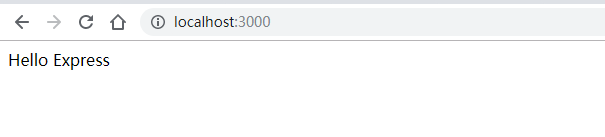
<p>通过谷歌访问<code>localhost:3000</code>就可以看到<code>Hello Express</code></p>
<figure data-type="image" tabindex="1"><img src="https://qq1332783374.github.io/post-images/1558423377543.png" alt=""></figure>
<h4 id="小结">小结</h4>
<p>到这里一个简单的 express 应用已经完成了，接下来就是通过 <strong>superagent</strong> 和 <strong>cheerio</strong> 实现一个简单网页爬虫</p>
<h2 id="2-简单的网页爬虫">2. 简单的网页爬虫</h2>
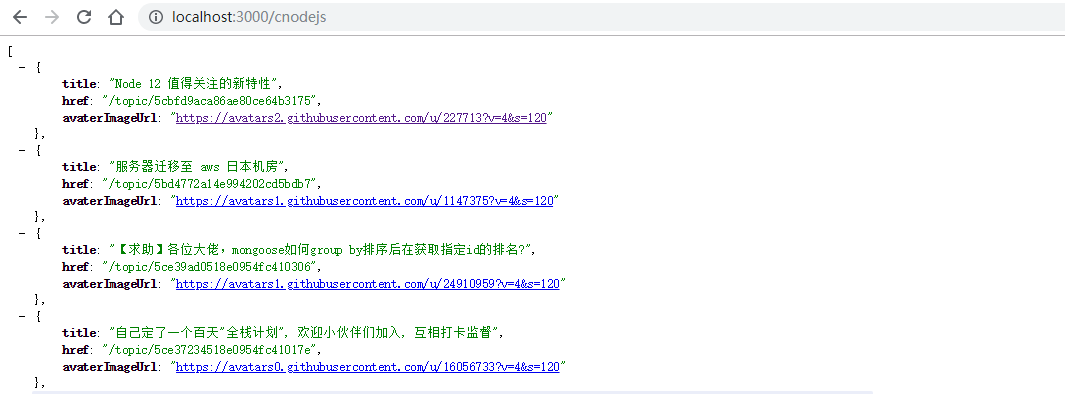
<p>这里是在上面的基础上继续完成来实现这个简单的网页爬虫，通过访问<code>localhost:3000</code>时，以 json 的形式在页面显示输出 CNode(https://cnodejs.org/ ) 社区首页的所有帖子标题和链接。</p>
<figure data-type="image" tabindex="2"><img src="https://qq1332783374.github.io/post-images/1558423915646.png" alt=""></figure>
<p>依赖介绍：</p>
<ul>
<li><a href="http://visionmedia.github.io/superagent/">superagent</a> 一个用来发 http 请求的库</li>
<li><a href="https://github.com/cheeriojs/cheerio">cheerio</a>，Node.js 版的 jQuery ，主要是用来读取网页的节点属性和相应的值</li>
</ul>
<p>插件安装：</p>
<pre><code class="language-javascript">npm install superagent cheerio --save
</code></pre>
<p>在<strong>app.js</strong>引入相关的依赖：</p>
<pre><code class="language-javascript">const superagent = require('superagent')
const cheerio = require('cheerio')
</code></pre>
<p>核心代码：</p>
<pre><code class="language-javascript">app.get('/',  (req, res, next) =&gt; {
  // 1. 用 superagent 去发起请求抓取 https://cnodejs.org/ 的 html 内容
  superagent.get('https://cnodejs.org/')
    .end((err, res) =&gt; {
      // 2. 错误判断处理
      if (err) {
        return next(err)
      }
			/**
			* 3. res.text 是存网页 html 内容
			* 4. 将爬取到的内容传到 cheerio.load(res.text) 方法进行节点的读取
			* 5. 接下来就是 jQuery的操作获取节点的值了 
			*/
      var $ = cheerio.load(res.text)
      var items = []
      $('#topic_list .topic_title').each((idx, element) =&gt; {
        var $element = $(element)
        items.push({
          title: $element.attr('title'),
          href: $element.attr('href')
        })
      })
			// 6. 发送到页面显示
      res.send(items)
    })
})
</code></pre>
<p><strong>最终代码：</strong></p>
<pre><code class="language-javascript">const express = require('express')
const superagent = require('superagent')
const cheerio = require('cheerio')

const app = express()

app.get('/', (req, res, next) =&gt; {
	superagent.get('https://cnodejs.org/')
		.end((err, res) =&gt; {
			if (err) {
				return next(err)
			}
			
			var $ = cheerio.load(res.text)
			var items = []
			
			$('#topic_list .topic_title').each((idx, element) =&gt; {
        var $element = $(element)
        items.push({
          title: $element.attr('title'),
          href: $element.attr('href')
        })
      })
			
      res.send(items)
		})
])


app.listen(3000, () =&gt; {
	console.log('server is running at http://localhost:3000')
})
</code></pre>
<p>启动：</p>
<pre><code class="language-javascript">
node app.js

</code></pre>
<h2 id="总结">总结</h2>
<p>一个简单的网页爬虫到这里就完成啦！！ 不过并发过高会被ip可能会被封。建议多看官方文档。</p>
]]></content>
    </entry>
    <entry>
        <title type="html"><![CDATA[原生JavaScript复习-简单的轮播图组件]]></title>
        <id>https://qq1332783374.github.io/post/yuan-sheng-javascript-fu-xi-jian-dan-de-lun-bo-tu-zu-jian</id>
        <link href="https://qq1332783374.github.io/post/yuan-sheng-javascript-fu-xi-jian-dan-de-lun-bo-tu-zu-jian">
        </link>
        <updated>2019-05-15T02:29:55.000Z</updated>
        <content type="html"><![CDATA[<h2 id="效果">效果</h2>
<figure data-type="image" tabindex="1"><img src="https://qq1332783374.github.io/post-images/1557887559707.gif" alt=""></figure>
<h2 id="代码">代码</h2>
<h4 id="css-样式">css 样式</h4>
<pre><code class="language-css">* {
            margin: 0;
            padding: 0;
        }
        .main {
            width: 800px;
            margin: 20px auto;
        }
        ul li {
            list-style: none;
            cursor: pointer;
        }
        .pic {
            width: 100%;
            position: relative;
            height: 520px;
        }
        .pic img {
            width: 100%;
            height: 520px;
        }
        .pic .indicators {
            position: absolute;
            bottom: 10px;
            left: 45%;
        }
        .pic .indicators li {
            width: 20px;
            height: 20px;
            background: rgba(0,0,0,0.55);
            border-radius: 50%;
            float: left;
            margin: 5px;
            cursor: pointer;
        }
        .pic .swiper {
            width: 100%;
            height: 100%;
            overflow: hidden;
        }


        .pic ul li.active {
            background: rgba(0,255,255,0.55);
        }
        a.btn {
            width: 50px;
            height: 50px;
            line-height: 50px;
            background: rgba(0,0,0,0.55);
            color: #fff;
            position: absolute;
            text-align: center;
            text-decoration: none;
            font-size: 24px;
            font-weight: 600;
            top: 45%;
        }
        a.next {
            right: 0;
        }
</code></pre>
<h4 id="html-结构">html 结构</h4>
<pre><code class="language-html">&lt;div class=&quot;main&quot;&gt;
        &lt;div class=&quot;pic&quot;&gt;
            &lt;!-- 图--&gt;
            &lt;div class=&quot;swiper&quot;&gt;
                &lt;img src=&quot;&quot; id=&quot;swiper&quot;&gt;
            &lt;/div&gt;

            &lt;!--点--&gt;
            &lt;ul class=&quot;indicators&quot; id=&quot;indicators&quot;&gt;

            &lt;/ul&gt;

            &lt;!-- 切换按钮--&gt;
            &lt;a href=&quot;javascript:;&quot; class=&quot;btn next&quot; onclick=&quot;next()&quot;&gt; &gt; &lt;/a&gt;
            &lt;a href=&quot;javascript:;&quot; class=&quot;btn prev&quot; onclick=&quot;prev()&quot;&gt; &lt; &lt;/a&gt;
        &lt;/div&gt;
    &lt;/div&gt;
</code></pre>
<h4 id="javascript">JavaScript</h4>
<pre><code class="language-javascript">var images = ['https://www.tanshangbiao.cn/project/images/bg.jpg','https://www.tanshangbiao.cn/project/images/bg-1.jpg','https://www.tanshangbiao.cn/project/images/bg-2.jpg'];

        var num = 0;
        var oSwiper = document.getElementById('swiper');
        var oIndicators = document.getElementById('indicators');

        /** 初始化 */
        function swiperInit() {
            oSwiper.src = images[num];

            for (let i=0; i&lt;images.length; i++) {
                let oLi = document.createElement('li');
                oLi.addEventListener('click', clickInd);
                oIndicators.appendChild(oLi);
            };
            oIndicators.getElementsByTagName('li')[num].className = 'active';
        };
        swiperInit();

        /** 下一张*/
        function next() {
            num ++ ;
            if (num &gt; images.length - 1) {
                num = 0 ;
            };
            oSwiper.src = images[num];

            ind();
        };

        /** 上一张 */
        function prev() {
            num -- ;
            if (num &lt; 0) {
                num = images.length - 1;
            };
            oSwiper.src = images[num];

            ind();
        };

        /** 切点 */
        function ind() {
            let oIndItem = oIndicators.getElementsByTagName('li');

            for (let i = 0; i&lt;oIndItem.length; i++) {
                oIndItem[i].className = '';
            };

            oIndItem[num].className = 'active';
        };

        function clickInd() {
            let oIndItem = oIndicators.getElementsByTagName('li');

            for (let i=0; i&lt;oIndItem.length; i++) {
                oIndItem[i].onclick = () =&gt; {
                    num = i;
                    ind();
                    oSwiper.src = images[i];
                }
            }
        }
</code></pre>
]]></content>
    </entry>
    <entry>
        <title type="html"><![CDATA[原生JavaScript复习-商品数量及价格计算]]></title>
        <id>https://qq1332783374.github.io/post/yuan-sheng-javascript-fu-xi-shang-pin-shu-liang-ji-jie-ge-ji-suan</id>
        <link href="https://qq1332783374.github.io/post/yuan-sheng-javascript-fu-xi-shang-pin-shu-liang-ji-jie-ge-ji-suan">
        </link>
        <updated>2019-05-13T14:28:00.000Z</updated>
        <content type="html"><![CDATA[<h2 id="效果">效果</h2>
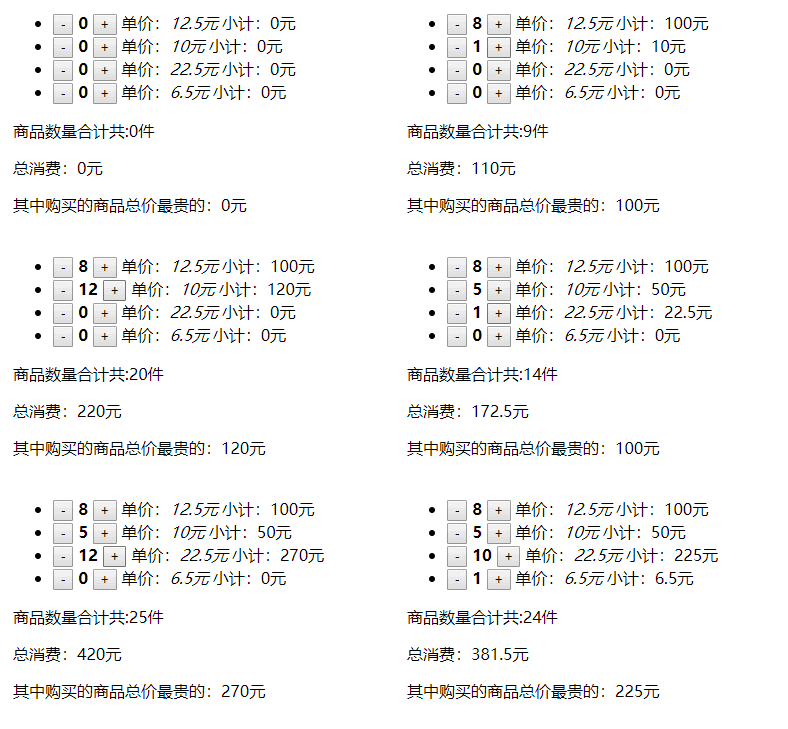
<figure data-type="image" tabindex="1"><img src="https://qq1332783374.github.io/post-images/1557798781997.gif" alt=""></figure>
<h2 id="代码">代码</h2>
<h4 id="html-结构">html 结构</h4>
<pre><code class="language-html">&lt;div&gt;
    &lt;ul id=&quot;list-group&quot;&gt;
        &lt;li&gt;
            &lt;input type=&quot;button&quot; value=&quot;-&quot; name=&quot;sub&quot;/&gt;
            &lt;strong&gt;0&lt;/strong&gt;
            &lt;input type=&quot;button&quot; value=&quot;+&quot; name=&quot;add&quot;/&gt;
            单价：&lt;em&gt;12.5元&lt;/em&gt;
            小计：&lt;span&gt;0元&lt;/span&gt;
        &lt;/li&gt;
        &lt;li&gt;
            &lt;input type=&quot;button&quot; value=&quot;-&quot; name=&quot;sub&quot;/&gt;
            &lt;strong&gt;0&lt;/strong&gt;
            &lt;input type=&quot;button&quot; value=&quot;+&quot; name=&quot;add&quot;/&gt;
            单价：&lt;em&gt;10元&lt;/em&gt;
            小计：&lt;span&gt;0元&lt;/span&gt;
        &lt;/li&gt;
        &lt;li&gt;
            &lt;input type=&quot;button&quot; value=&quot;-&quot; name=&quot;sub&quot;/&gt;
            &lt;strong&gt;0&lt;/strong&gt;
            &lt;input type=&quot;button&quot; value=&quot;+&quot; name=&quot;add&quot;/&gt;
            单价：&lt;em&gt;22.5元&lt;/em&gt;
            小计：&lt;span&gt;0元&lt;/span&gt;
        &lt;/li&gt;
        &lt;li&gt;
            &lt;input type=&quot;button&quot; value=&quot;-&quot; name=&quot;sub&quot;/&gt;
            &lt;strong&gt;0&lt;/strong&gt;
            &lt;input type=&quot;button&quot; value=&quot;+&quot; name=&quot;add&quot;/&gt;
            单价：&lt;em&gt;6.5元&lt;/em&gt;
            小计：&lt;span&gt;0元&lt;/span&gt;
        &lt;/li&gt;
    &lt;/ul&gt;
    &lt;p id=&quot;allUnit&quot;&gt;商品数量合计共:0件&lt;/p&gt;
    &lt;p id=&quot;allPrice&quot;&gt;总消费：0元&lt;br/&gt;
    &lt;p id=&quot;maxPrice&quot;&gt;其中购买的商品总价最贵的：0元&lt;/p&gt;
&lt;/div&gt;
</code></pre>
<h4 id="js">JS</h4>
<pre><code class="language-javascript">// 单个商品数量dom
    var oUnit = document.getElementsByTagName('strong');
    // 单价dom
    var onePrice = document.getElementsByTagName('em');
    // 小计 dom
    var subTotal = document.getElementsByTagName('span');
    // 总件数 dom
    var allUnit = document.getElementById('allUnit');
    // 总价 dom
    var oAllPrice = document.getElementById('allPrice');
    // 最贵商品
    var maxPrice = document.getElementById('maxPrice');

    // li
    var oUl = document.getElementById('list-group');
    var oLi = oUl.getElementsByTagName('li');

    for (let i =0; i&lt;oLi.length; i++) {

        handleShop(i);

    };
    // 商品加减
    function handleShop(index) {
        let addBtn = document.getElementsByName('add');
        let subBtn = document.getElementsByName('sub');
        let num = 0;
        // 商品添加
        addBtn[index].onclick = () =&gt; {
            num ++;
            // 单个商品数量
            oUnit[index].innerText = num;

            // 小计
            subTotal[index].innerText = parseFloat(onePrice[index].innerText)*num + '元';

            // 总件数
            allUnit.innerText = `商品数量合计共:${total()}件`;

            // 总价
            oAllPrice.innerText = `总消费：${allPrice()}元`;

            // 最大值
            maxPrice.innerText = `其中购买的商品总价最贵的：${max()}元`;
        };

        // 商品减去
        subBtn[index].onclick = () =&gt; {
            num -- ;
            if (num &lt; 0){
                num = 0;
            };
            // 单个商品数量
            oUnit[index].innerText = num;

            // 小计
            subTotal[index].innerText = parseFloat(onePrice[index].innerText)*num + '元';

            // 总件数
            allUnit.innerText = `商品数量合计共:${total()}件`;

            // 总价
            oAllPrice.innerText = `总消费：${allPrice()}元`;

            // 最大值
            maxPrice.innerText = `其中购买的商品总价最贵的：${max()}元`;
        };

    };

    // 总件数
    function total() {
        let sum = 0;
        for (let i=0; i&lt;oUnit.length; i++) {
            sum += parseInt(oUnit[i].innerText)
        };
        return sum;
    };
    
    // 总价
    function allPrice() {
        let sum = 0;
        for (let i=0; i&lt;subTotal.length; i++) {
            sum += parseFloat(subTotal[i].innerText);
        };
        return sum;
    };

    // 最大值
    function max() {
        let arr = [];

        for (let i=0; i&lt;subTotal.length; i++) {
            arr.push(parseFloat(subTotal[i].innerText));
        };
        // 最大值，最小值反过来就可以
        arr.sort((a, b) =&gt; {
            return b-a
        });

        return arr[0];
    }
</code></pre>
]]></content>
    </entry>
    <entry>
        <title type="html"><![CDATA[console不止.log()]]></title>
        <id>https://qq1332783374.github.io/post/console-bu-zhi-log</id>
        <link href="https://qq1332783374.github.io/post/console-bu-zhi-log">
        </link>
        <updated>2019-05-13T02:01:47.000Z</updated>
        <content type="html"><![CDATA[<h2 id="前言">前言</h2>
<p>刚开始学JS的时候，老师就说过要多用<code>console.log()</code> 打印信息。不过也是对于我这种初学者来说<code>console.log()</code>已经够用了，随着学习的深入，<code>log()</code> 面对一个长长的数组时，就显得不是很直观。这个时候就可以用 <code>console.table()</code>来直观显示这一数组 。接下来和大家介绍一下<code>console</code>的几个比较常用的方法。</p>
<h2 id="1-consolelog">1. console.log()</h2>
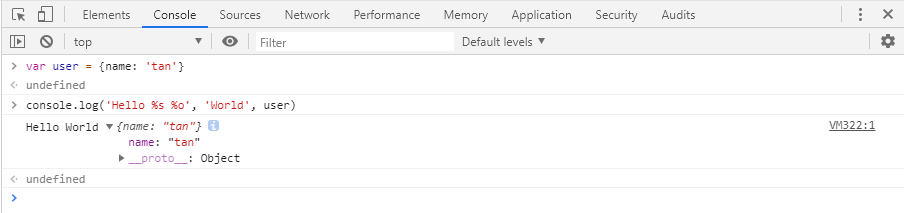
<p>其实<code>console.log()</code>还隐藏着很多让人意想不到的功能，比如说打印出带<code>css</code>样式的文字，通过<code>%s</code>和<code>%o</code>(注意是字母 o)占位符进行传值。</p>
<h4 id="11-s和o占位符">1.1 %s和%o占位符</h4>
<figure data-type="image" tabindex="1"><img src="https://qq1332783374.github.io/post-images/1557717587934.png" alt=""></figure>
<pre><code class="language-javascript">
var user = {name: 'tan'};

console.log('Hello %s %o', 'World', user);

</code></pre>
<h4 id="12-打印带样式信息">1.2 打印带样式信息</h4>
<p><strong>console.log('%cMsg', 'css')</strong></p>
<figure data-type="image" tabindex="2"><img src="https://qq1332783374.github.io/post-images/1557718016104.png" alt=""></figure>
<pre><code class="language-javascript">console.log('Hello %cWorld', 'color: #2b99ff; font-size: 24px;');
</code></pre>
<h4 id="13-增强log信息的阅读体验">1.3 增强log()信息的阅读体验</h4>
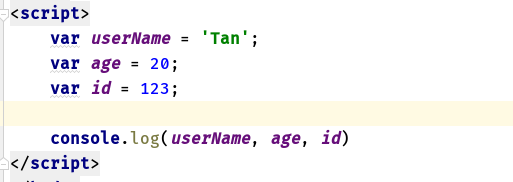
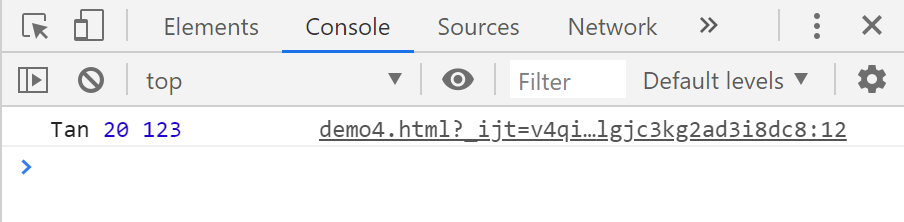
<p>假设有这么一个场景，你需要一次打印好几个变量信息，而你又不想写好几个<code>console.log()</code>进行一次次打印。这时候你可能会一次打印全部变量，场景如下：</p>
<figure data-type="image" tabindex="3"><img src="https://qq1332783374.github.io/post-images/1557718510598.png" alt=""></figure>
<figure data-type="image" tabindex="4"><img src="https://qq1332783374.github.io/post-images/1557718515652.png" alt=""></figure>
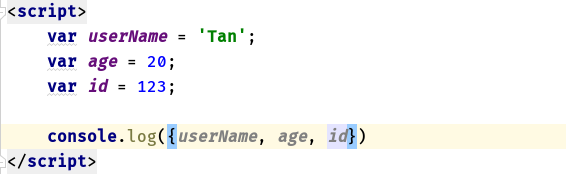
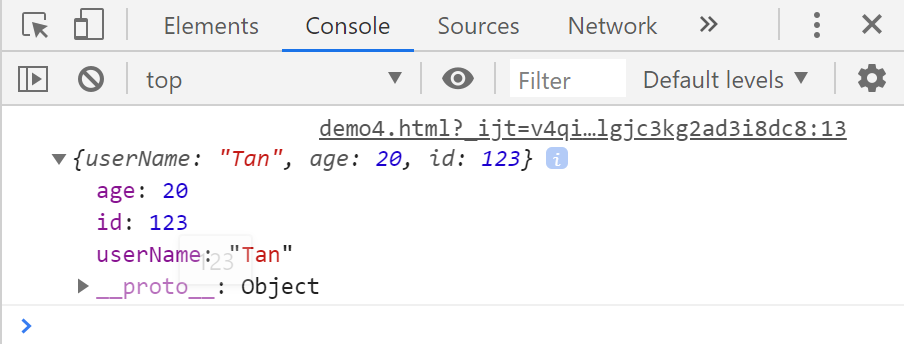
<p>那么问题来了，对象少的时候还是比较好辨别。那如果对象多了，就显得有点混乱了。为了提高它的可读性，可以给这些参数用一个<code>{}</code>包起来，就会有不一样的效果。</p>
<figure data-type="image" tabindex="5"><img src="https://qq1332783374.github.io/post-images/1557718717009.png" alt=""></figure>
<figure data-type="image" tabindex="6"><img src="https://qq1332783374.github.io/post-images/1557718722663.png" alt=""></figure>
<h2 id="2-consoletable">2. console.table()</h2>
<p>这个API我也是最近才发现的，有点惊讶，居然还有这么好用的东西，话不多说自行体验。</p>
<p>假设有这么一个数组：</p>
<pre><code class="language-javascript">var arr = [
        {id: 1, name: '小明', age: '18'},
        {id: 2, name: '小红', age: '19'},
        {id: 3, name: '小东', age: '18'},
        {id: 4, name: '小莉', age: '18'},
        {id: 5, name: '小伟', age: '20'}
    ]
</code></pre>
<ol>
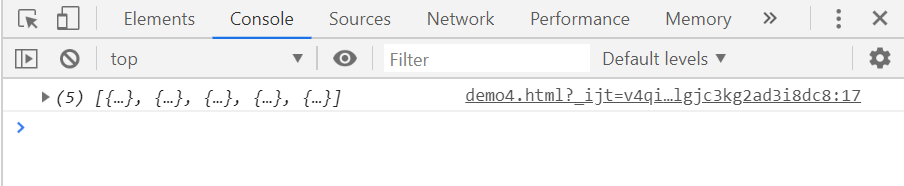
<li>用<code>console.log()</code>时是这样的，效果不是那么一目了然：</li>
</ol>
<figure data-type="image" tabindex="7"><img src="https://qq1332783374.github.io/post-images/1557719635724.png" alt=""></figure>
<ol start="2">
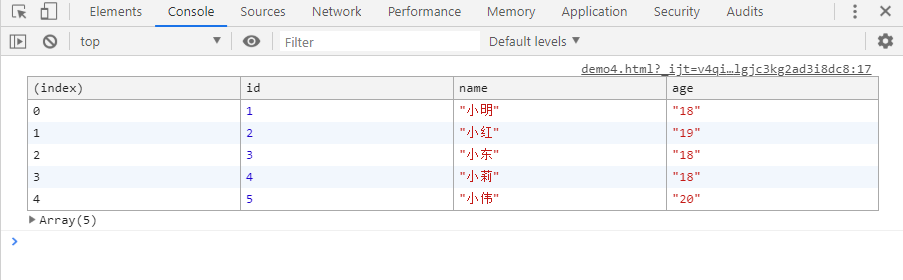
<li>用<code>console.table()</code>是这样的，一目了然：</li>
</ol>
<figure data-type="image" tabindex="8"><img src="https://qq1332783374.github.io/post-images/1557719731762.png" alt=""></figure>
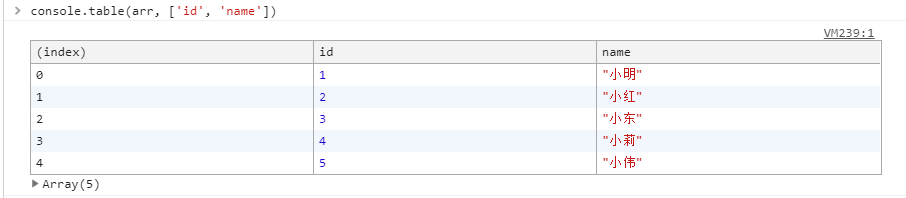
<p><code>console.table()</code>的第二参数是选择显示的字段</p>
<pre><code class="language-javascript">console.table(arr, ['id', 'name'])
</code></pre>
<figure data-type="image" tabindex="9"><img src="https://qq1332783374.github.io/post-images/1557719994746.png" alt=""></figure>
<blockquote>
<p><code>console.table()</code>也支持node.js，不过要更新到10版本以上。同时这个也有个限制，就是最多只能处理<strong>1000</strong>条数据。</p>
</blockquote>
<h2 id="3-consoledir">3. console.dir()</h2>
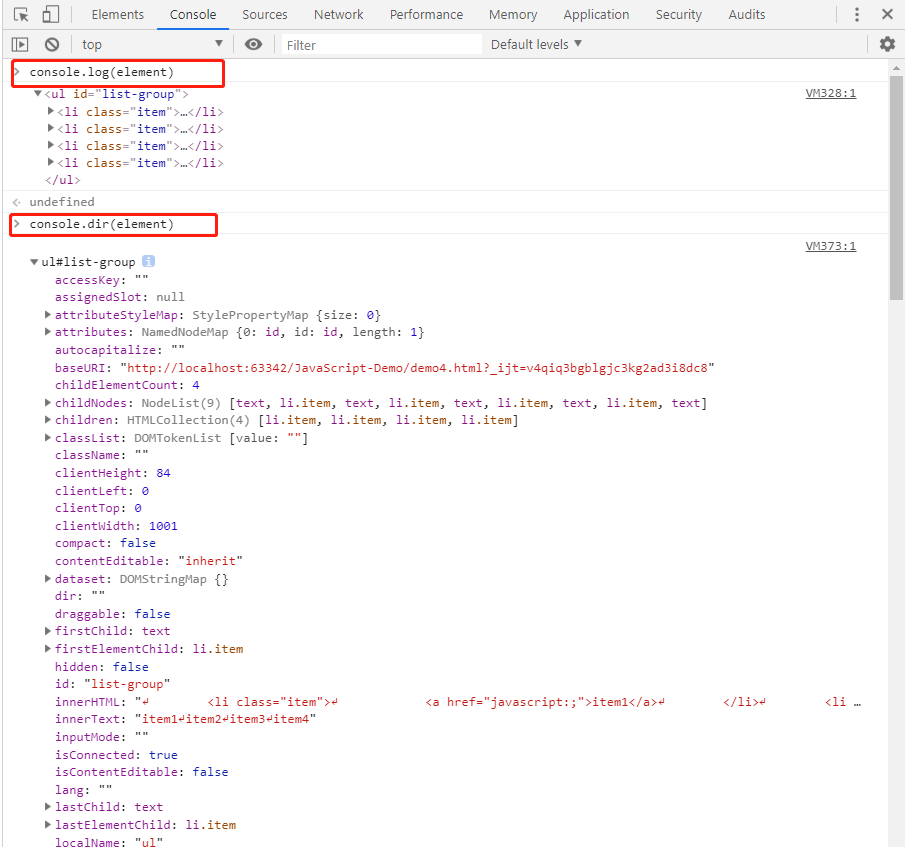
<p><code>console.log()</code>和<code>console.dir()</code>的区别是看图吧：</p>
<figure data-type="image" tabindex="10"><img src="https://qq1332783374.github.io/post-images/1557734303959.png" alt=""></figure>
<h2 id="4-consolewarn">4. console.warn()</h2>
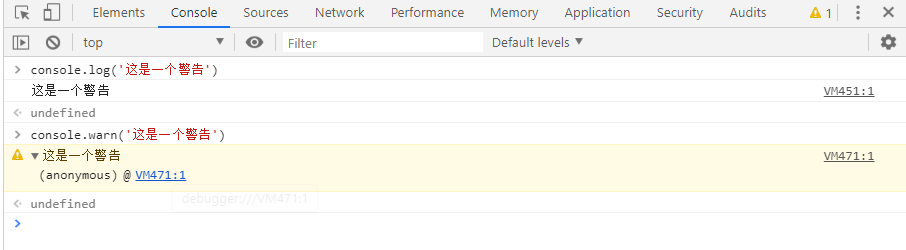
<p>更直观的看到一些警告的信息（个人理解）</p>
<figure data-type="image" tabindex="11"><img src="https://qq1332783374.github.io/post-images/1557734472331.png" alt=""></figure>
<h2 id="5-consoleassert">5. console.assert()</h2>
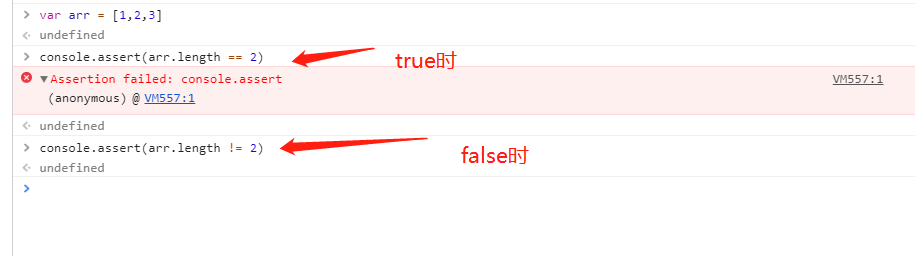
<p>这个是用来判断<code>true</code>和<code>false</code>的，而且只有为<code>false</code>的时候才行，具体用处我也不是很理解0.0，可能没有遇到这种场景。</p>
<figure data-type="image" tabindex="12"><img src="https://qq1332783374.github.io/post-images/1557735086430.png" alt=""></figure>
<p>参考文献：</p>
<ul>
<li>
<p>掘金-前端小智-<a href="https://juejin.im/post/5ca6bf5151882543fc5e3bb0#heading-5">【译】灵活使用 console 让 js 调试更简单</a></p>
</li>
<li>
<p>掘金小册 - <a href="https://juejin.im/book/5c526902e51d4543805ef35e/section/5c5269026fb9a049f1549e4a">《你不知道的 Chrome 调试技巧》</a></p>
</li>
</ul>
]]></content>
    </entry>
    <entry>
        <title type="html"><![CDATA[H5+WebSocket+Node.js+Koa2 实现简单的聊天室功能]]></title>
        <id>https://qq1332783374.github.io/post/h5websocketnodejskoa2-shi-xian-jian-dan-de-liao-tian-shi-gong-neng</id>
        <link href="https://qq1332783374.github.io/post/h5websocketnodejskoa2-shi-xian-jian-dan-de-liao-tian-shi-gong-neng">
        </link>
        <updated>2019-05-12T10:42:21.000Z</updated>
        <content type="html"><![CDATA[<h2 id="前言">前言</h2>
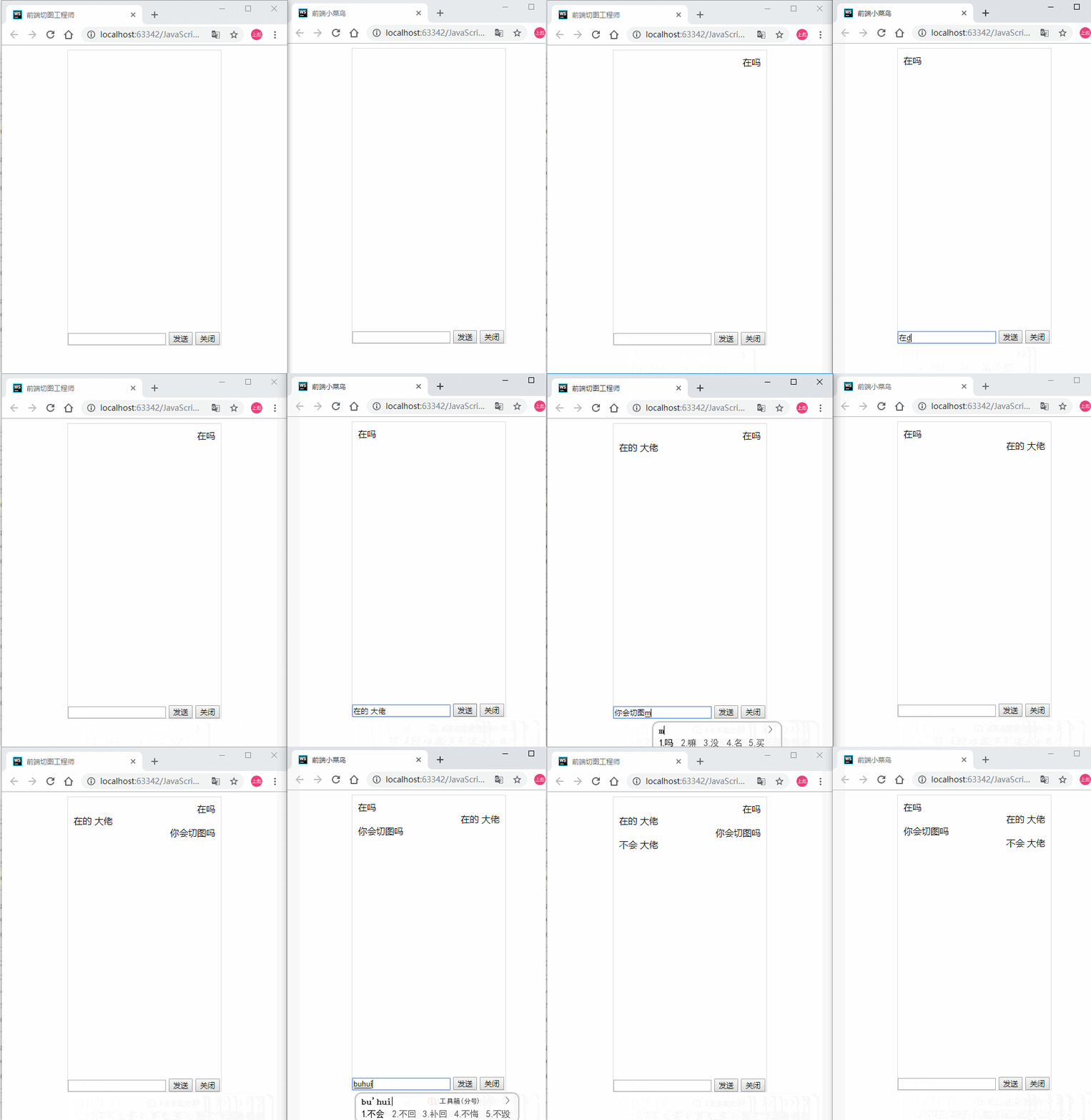
<p>这个小Demo是在复习原生JavaScript时一道练习的高级版，本来是想着照着原来做出来就好了，但觉得好像有没什么意思。由于之前有了解过WebSocket的通讯原理，还有最近在学习node.js，结合网上的一些资料，于是就把这道题升级一下。</p>
<h2 id="效果">效果</h2>
<figure data-type="image" tabindex="1"><img src="https://qq1332783374.github.io/post-images/1557671730613.gif" alt=""></figure>
<h2 id="代码">代码</h2>
<h4 id="服务端代码">服务端代码</h4>
<pre><code class="language-javascript">// 加载 koa2 相关依赖
let Koa = require(&quot;koa2&quot;);
let WebSocket = require(&quot;koa-websocket&quot;);

// 实例化 WebSocket, 并创建接收消息数组
let app = WebSocket(new Koa());
let ctxs = [];


// 简单的消息收发
app.ws.use((ctx, next) =&gt; {
    // 接收到的消息
    ctxs.push(ctx);
    ctx.websocket.on(&quot;message&quot;, (message) =&gt; {
        console.log(message);
        for(let i = 0; i &lt; ctxs.length; i++) {
            if (ctx == ctxs[i]) continue;
            ctxs[i].websocket.send(message);
        }
    });
    ctx.websocket.on(&quot;close&quot;, (message) =&gt; {
        // 关闭时清除相关数据，防止出错
        let index = ctxs.indexOf(ctx);
        ctxs.splice(index, 1);
    });
});
// 端口监听
app.listen(3000);
</code></pre>
<h4 id="html-代码">html 代码</h4>
<p>ps : 创建两个html文件，代码内容都相同。就可以实现两个人之间的聊天了。</p>
<pre><code class="language-html">&lt;!DOCTYPE html&gt;
&lt;html lang=&quot;en&quot;&gt;
&lt;head&gt;
    &lt;meta charset=&quot;UTF-8&quot;&gt;
    &lt;title&gt;前端切图工程师&lt;/title&gt;
    &lt;style&gt;
        .chat-room
        {
            width: 250px;
            height: 500px;
            padding: 10px;
            border: 1px solid #ddd;
            position: relative;
            margin: 0 auto;
            overflow: hidden;
        }
        .chat-content
        {
            width: 100%;
            height: 450px;
            overflow:auto;
        }
        .chat-op
        {
            position: absolute;
            bottom: 0;
            left: 0;
        }
        .me-item
        {
            text-align: right;
        }
    &lt;/style&gt;
&lt;/head&gt;
&lt;body&gt;
&lt;div class=&quot;chat-room&quot;&gt;
    &lt;div class=&quot;chat-content&quot; id=&quot;chatContent&quot;&gt;

    &lt;/div&gt;
    &lt;div class=&quot;chat-op&quot;&gt;
        &lt;input type=&quot;text&quot; id=&quot;content&quot; /&gt;
        &lt;input type=&quot;button&quot; value=&quot;发送&quot; id=&quot;send&quot; /&gt;
        &lt;input type=&quot;button&quot; value=&quot;关闭&quot; id=&quot;close&quot; /&gt;
    &lt;/div&gt;
&lt;/div&gt;
&lt;/body&gt;
&lt;script type=&quot;text/javascript&quot;&gt;
    var chatContent = document.getElementById('chatContent');
    var oContent = document.getElementById('content');


    /* 封装 WebSocket 实例化的方法  */
    var CreateWebSocket = (function () {
        return function (urlValue) {
            if(window.WebSocket) return new WebSocket(urlValue);
            if(window.MozWebSocket) return new MozWebSocket(urlValue);
            return false;
        }
    })();

    //实例化 WebSocket 并且连接服务器
    var webSocket = CreateWebSocket(&quot;ws://localhost:3000&quot;);

    /* 接收到服务端的消息时 */
    webSocket.onmessage = function (msg) {
        console.log(&quot;接收到新消息:&quot; + msg.data);

        let oFriendItem = document.createElement('div');
        oFriendItem.className = 'friedns-item';

        let oSpan = document.createElement('span');
        oSpan.className = 'friedns';

        let message = document.createTextNode(msg.data);
        oSpan.appendChild(message);
        oFriendItem.appendChild(oSpan);

        chatContent.appendChild(oFriendItem);

        // 聊天内容置底部
        chatContent.scrollTop = chatContent.scrollHeight;

    };

    // 关闭时
    webSocket.onclose = function () {
        console.log(&quot;关闭连接&quot;);
    };
    // 发送消息
    document.getElementById(&quot;send&quot;).onclick = function () {

        var str = document.getElementById(&quot;content&quot;).value;

        let oMeItem = document.createElement('div');
        oMeItem.className = 'me-item';

        let oSpan = document.createElement('span');
        oSpan.className = 'me';

        let msg = document.createTextNode(oContent.value);
        oSpan.appendChild(msg);
        oMeItem.appendChild(oSpan);

        chatContent.appendChild(oMeItem);

        oContent.value = '';

        // 聊天内容置底部
        chatContent.scrollTop = chatContent.scrollHeight;

        webSocket.send(str);
    };

    //关闭
    document.getElementById(&quot;close&quot;).addEventListener(&quot;click&quot;, function () {
        webSocket.close();
    });

&lt;/script&gt;
&lt;/html&gt;
</code></pre>
<p>参考资料：<br>
感谢博客园的大神，<a href="%E5%8F%82%E8%80%83%E6%96%87%E7%8C%AE">https://www.cnblogs.com/lovling/p/7440360.html</a></p>
]]></content>
    </entry>
</feed>